 FolderBridge
Source on GitHub
Support
Save on your Mac.
Open on your PC.
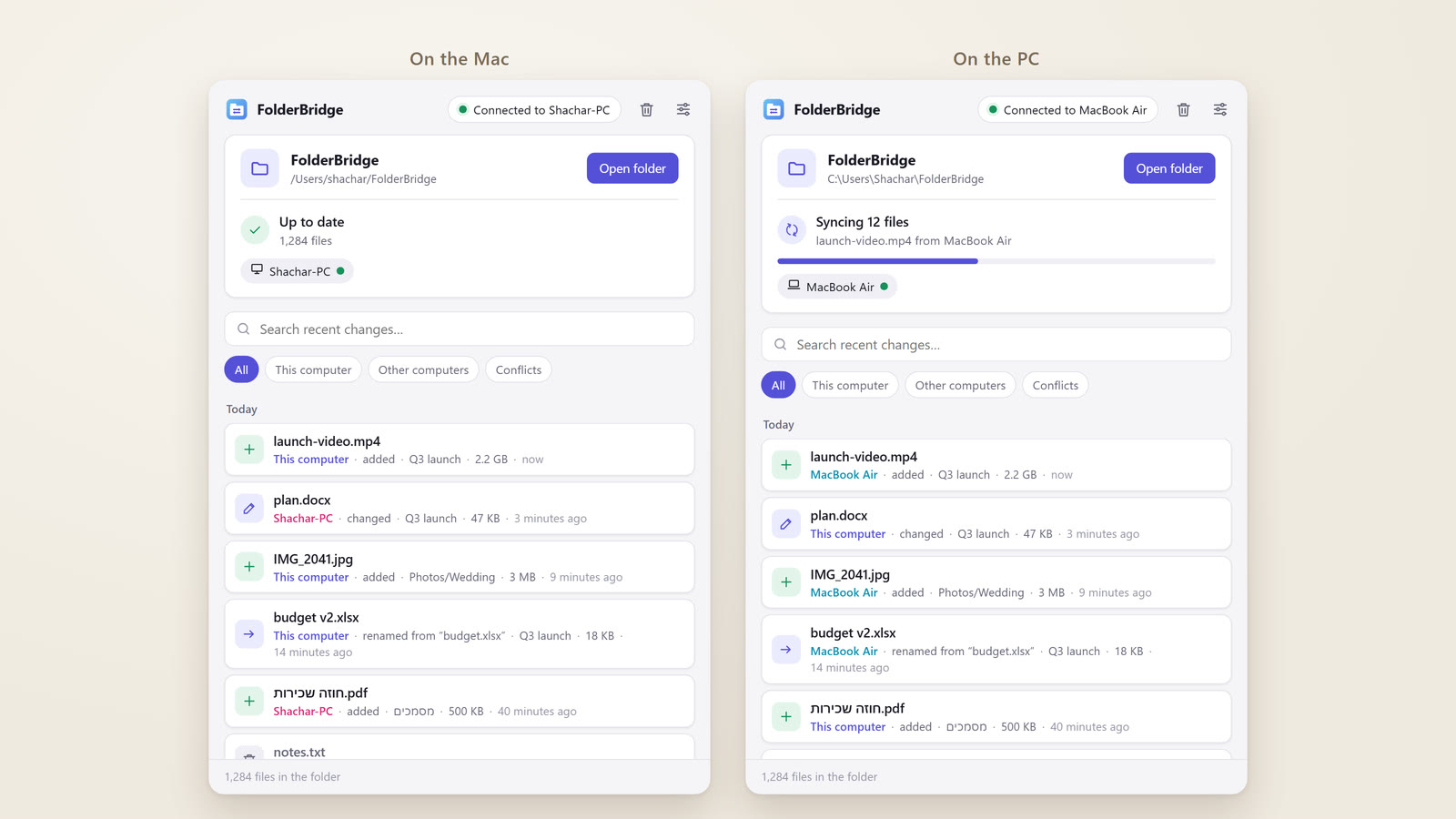
FolderBridge keeps one folder identical on your Mac and your Windows PC, over your home Wi-Fi. Put a file in, and it's on the other computer a moment later. No cloud, no account, no storage limit. Free and open source.
See it in 100 seconds
From USB sticks and attachments that are too big to just saving the file.
Connect them once. That's it.
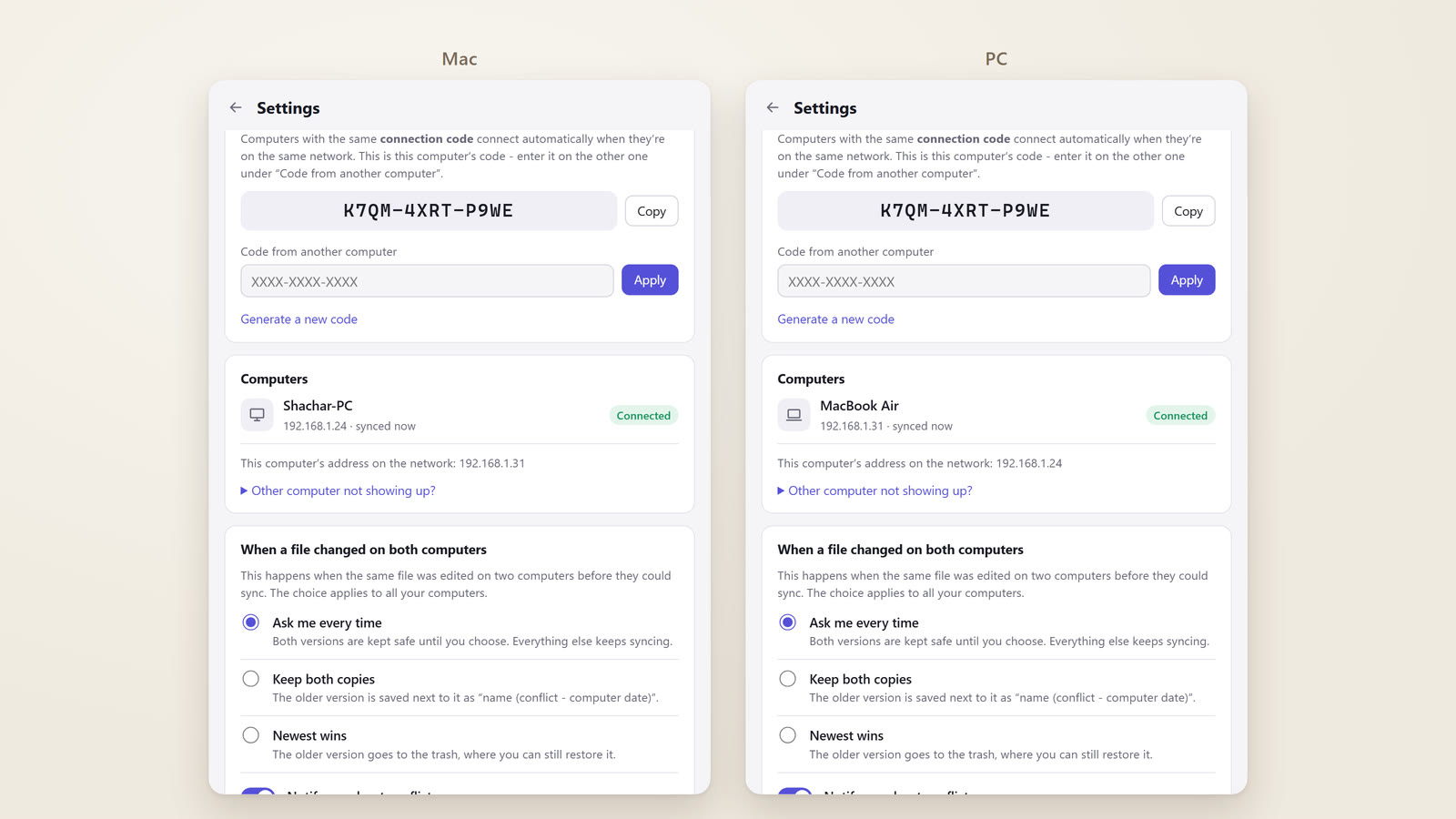
- Install FolderBridge on both computersThe Windows installer or the Mac app from the buttons above. Each gets a
FolderBridgefolder in its home folder. - Enter the same code on bothSettings shows this computer's connection code, like
K7QM-4XRT-P9WE. Type it on the other computer under “Code from another computer”. - Use the folder as usualSave, copy, rename, delete - in Finder, in File Explorer, from any app. The other computer has it a moment later. And the other way around.
Small app. Everything you need.
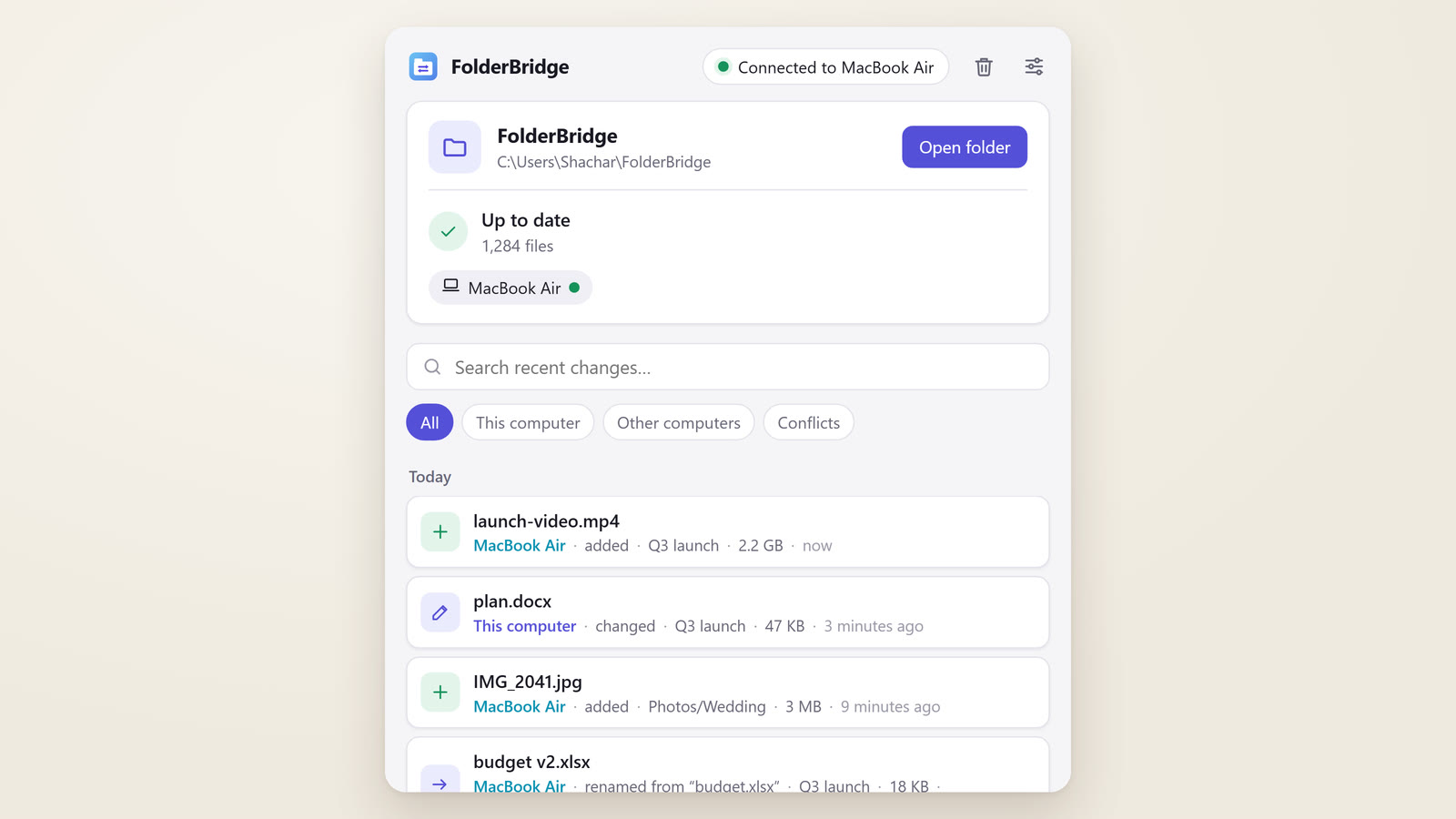
Every change, from both computers
See what was added, changed, renamed or deleted, on which computer and when. Search by name, and open any file's folder with one click.
- Renames and moves travel as renames - nothing is sent again.
- Big videos and photo folders are fine: files of any size are sent in pieces, checked on arrival, and carry on after an interruption.
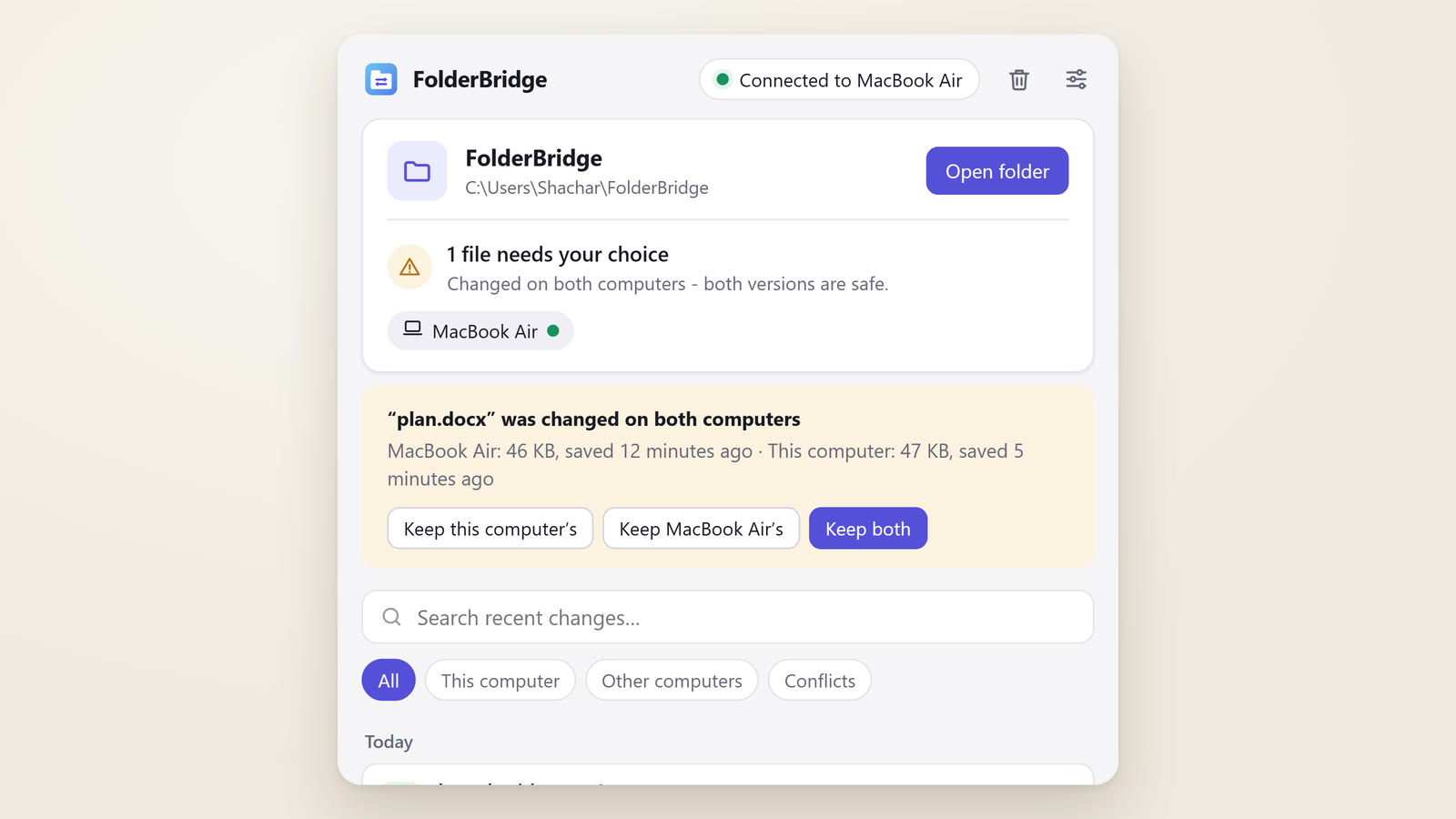
Changed on both? You choose.
If the same file was edited on both computers before they could sync, FolderBridge keeps both versions safe and asks which one to keep - or keep both. Everything else keeps syncing meanwhile.
- Prefer no questions? Set it to always keep both copies, or to let the newest win.
Nothing is ever lost
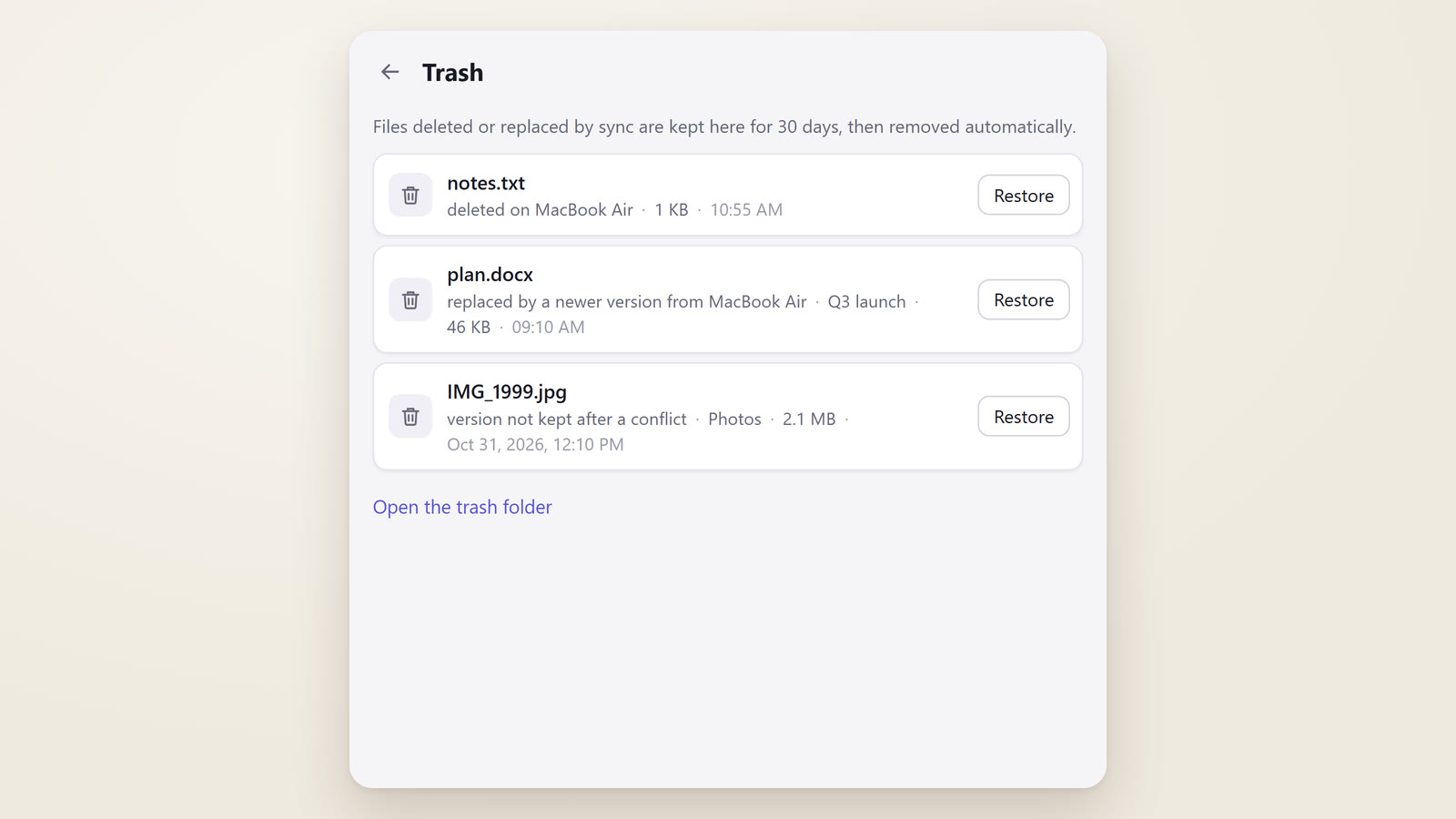
Deleted and replaced files go to FolderBridge's own trash for 30 days, on every computer. One click restores a file everywhere.
- If many files disappear at once, FolderBridge asks before deleting them on the other computer.
- A folder that goes missing (an unplugged drive) is never taken as “everything was deleted”.
Private by design
No account, no server, no cloud, no storage limit. Your computers talk directly on your own network, and everything between them is encrypted (AES-256-GCM) with a key made from your connection code.
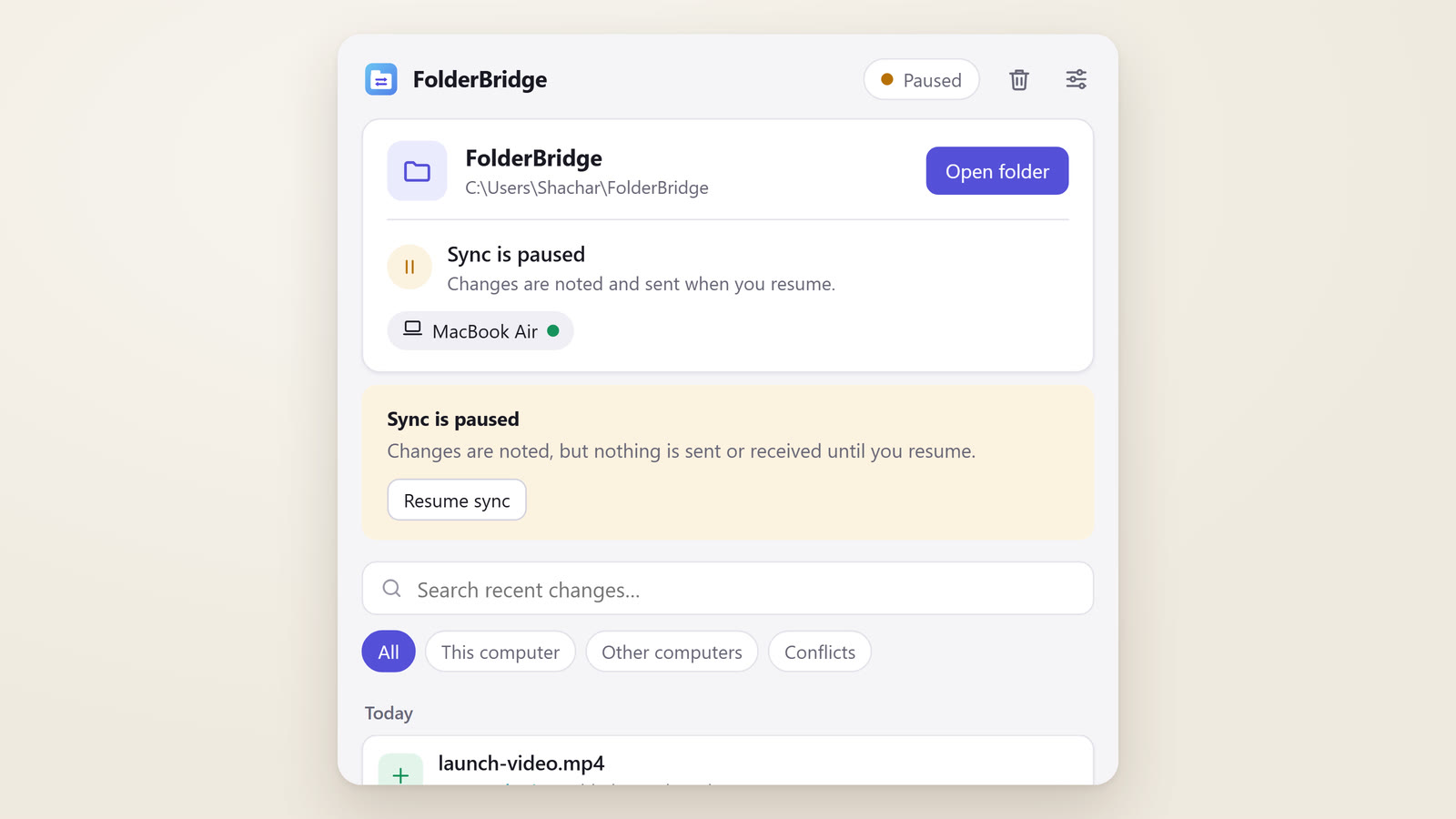
- Pause sync with one click from the tray or the menu bar.
Speaks your language
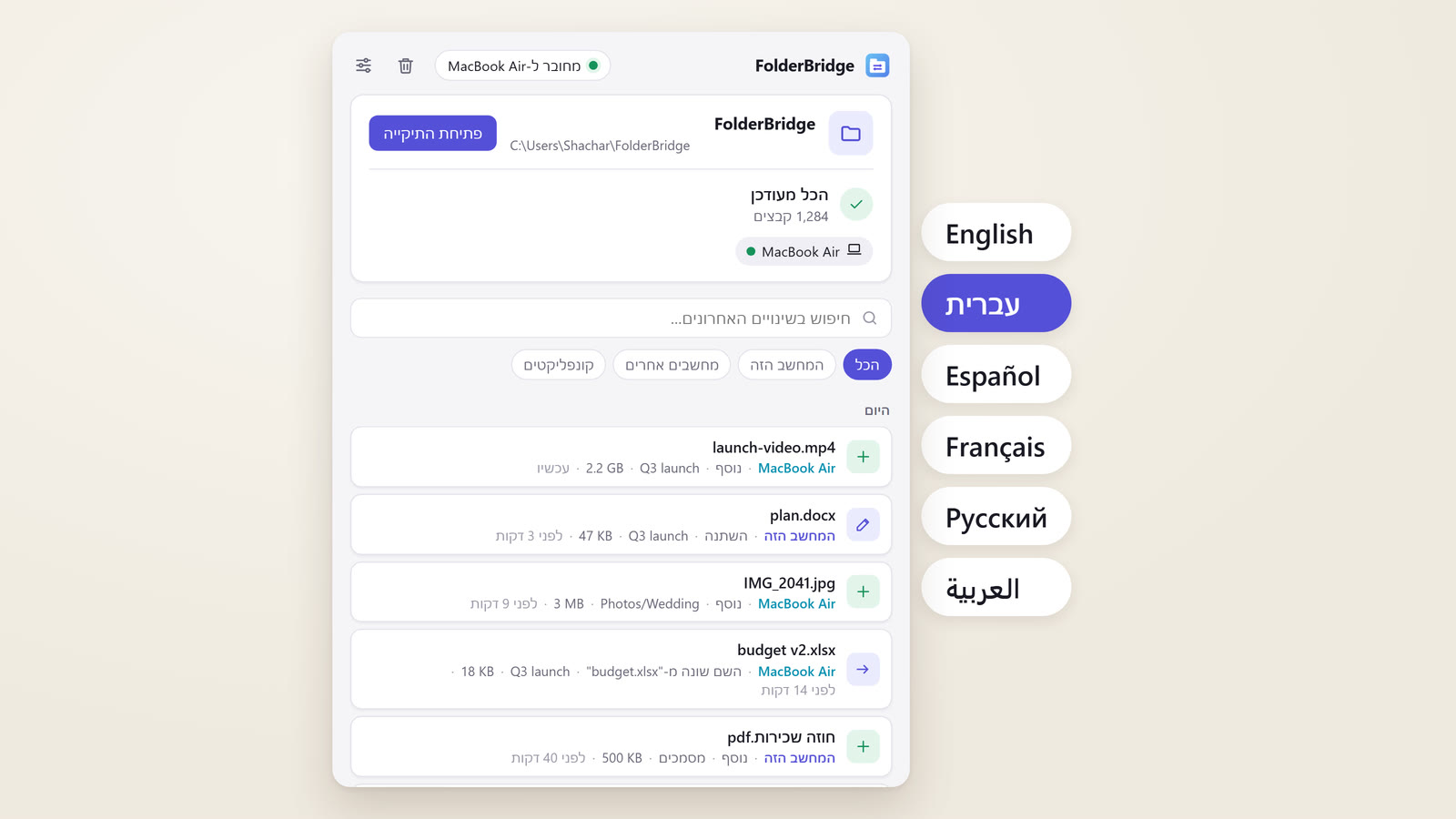
English, עברית, Español, Français, Русский and العربية - with full right-to-left layouts for Hebrew and Arabic. Hebrew and accented file names arrive exactly right, and names Windows can't use are pointed out instead of being changed behind your back.
Install
FolderBridge isn't signed with paid Apple/Microsoft certificates, so both systems ask once before opening it.
Windows
- Run
FolderBridge-Windows-Setup.exe. - If you see “Windows protected your PC”, click More info → Run anyway.
- When the firewall asks, click Allow access, and make sure your home network is set to Private.
Mac
- Open
FolderBridge-macOS.dmgand drag FolderBridge into Applications. - Open it once. If macOS says it can't verify it, go to System Settings → Privacy & Security and click Open Anyway.
- Allow FolderBridge to find devices on your local network when asked.
Questions
Where are my files?
In the FolderBridge folder in your home folder, on each computer. You can pick another folder in Settings. FolderBridge's own data (its log and index, not your files) is in its data folder: Settings → Advanced → Open data folder.
Is there a size limit?
No, only your disk space. Big files are sent in pieces, checked when they arrive, and an interrupted transfer carries on where it stopped.
I deleted something by mistake.
Open the trash in FolderBridge (the bin icon at the top) and click Restore. The file comes back on every computer. Files stay in the trash for 30 days.
Does it work when my computers are on different networks?
No - that's the point: everything stays on your local network. Changes made in the meantime are kept and sync when both computers are on the same network again.
The other computer doesn't show up.
Check that both are on the same network (not a guest network), that FolderBridge is open on both, and that the codes match. If your router blocks discovery, add the other computer by its IP address in Settings → “Other computer not showing up?”.
Can it sync several folders?
Not yet - one folder per computer, with as many subfolders inside as you like.
Is it really free?
Yes. FolderBridge is open source under the MIT licence. No accounts, no ads, no tracking.
More free tools
Small tools that make everyday work easier, by AI World by Shachar.
Enjoying FolderBridge?
It's free and always will be. If it saves you time, you can buy me a coffee. It helps me keep building free tools like this one.